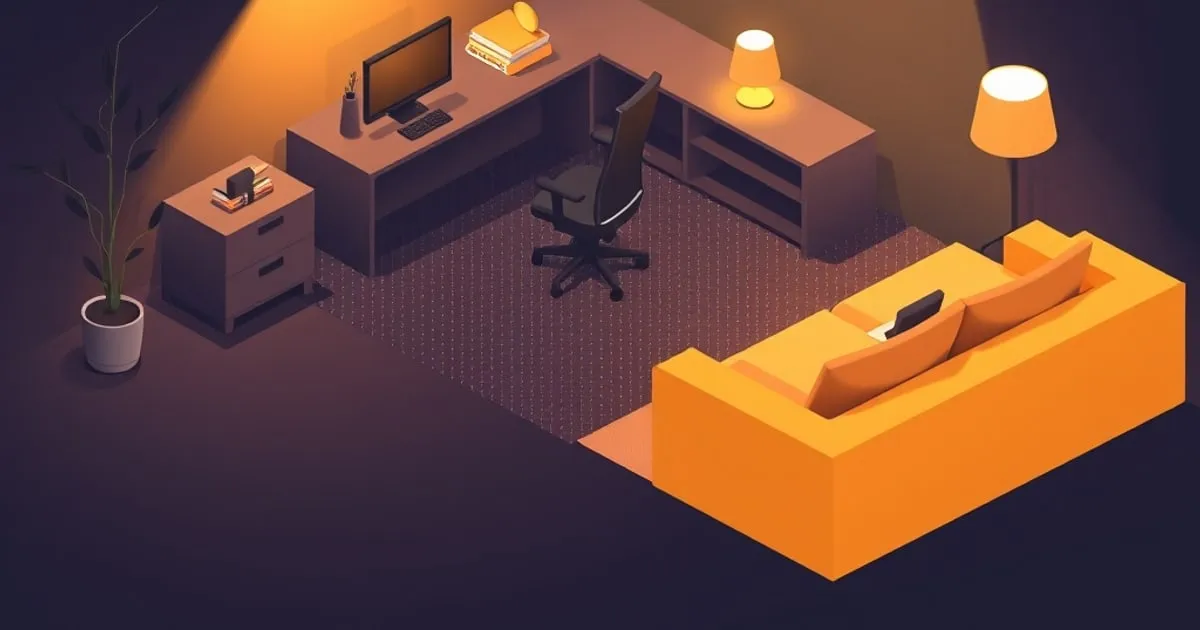
Lighting and Acoustics for Home Offices: See Better, Sound Better
A practical guide to task lighting, natural light optimization, and acoustic treatment for home offices. Learn how to reduce eye strain, manage video call
Bad lighting ruins your day. You squint at your monitor, your eyes hurt by 3pm, and you have a headache by dinner. Bad acoustics ruin your calls. Your coworkers hear echo and keyboard clatter; you hear every noise from the street. Neither problem is expensive to fix—they’re just invisible until you experience them.
This guide walks you through lighting and acoustics so you can see clearly and sound professional without breaking the bank.
Lighting: Three Layers
Good office lighting uses three layers: ambient (overall room), task (desk-level), and accent (optional). One light source is never enough.
Layer 1: Ambient Lighting (Overhead)
This is your room’s baseline light. Without it, task lights cast harsh shadows and create eye strain.
Options:
- Existing overhead light: If you have one, use it. If it’s too bright or too dim, replace the bulb (more on color temperature below).
- Ceiling-mounted fixture: $30–$100. Simple, effective. Install once.
- Pendant lights (2–3): $50–$200. More expensive but distributed light is easier on eyes.
Placement: Centered in the room, not directly above your desk (which creates harsh shadows on your monitor).
Color temperature: Aim for 4000K (neutral white) for daytime work. Avoid 3000K (warm, yellow) overhead—it’s okay for living rooms but too dim for focused work.
Layer 2: Task Lighting (Desk-Level)
This is the light that actually helps you see your work. It should be bright enough that you don’t squint at your screen, but not so bright that you’re backlit by your own desk lamp.
Options:
-
Desk lamp (recommended) — $25–$150
- Position to the side of your monitor (left or right, depending on your mouse hand)
- Aim the light down and away from your face so it doesn’t reflect off the screen
- 3000K–4000K color temperature is fine here
- Look for adjustable brightness (three-level switch or dimmer)
- Recommended models: Nanoleaf Essentials A19 ($40–$80) with color-temperature adjustment, or BenQ e-Reading Lamp ($50–$100) with desk mounting
-
Monitor with built-in backlight — $100–$200 more than standard
- Some 27”+ monitors have integrated bias lighting behind the screen
- Reduces eye strain because the panel isn’t brighter than the wall behind it
- Requires compatible monitor; not an upgrade for existing displays
-
Ring light (if you do video calls) — $50–$150
- Provides soft, even light for your face and desk
- Good for content creators, coaches, frequent video conferencing
- Position above your monitor so it lights you head-on
- Can feel overpowering if you don’t adjust brightness
Placement: To the side of your monitor, not behind it (glare) and not directly in front (shadows). Adjust so the light reaches your desk but doesn’t shine in your eyes.
Brightness: 300–500 lux (lumens per square meter) at your desk. Most desk lamps are in this range. If your eyes hurt after 2–3 hours, the light is too bright or too dim.
Layer 3: Accent Lighting (Optional, Circadian Sync)
This is the “nice to have” layer. It adjusts your body’s circadian rhythm by matching natural daylight throughout the day.
Why it matters: Your body naturally wakes up to blue-tinted light (5500K+) and winds down under warm light (2700K). If you work under constant neutral light (4000K), your circadian rhythm gets confused, and you might have trouble sleeping at night.
Options:
-
Smart bulbs (Philips Hue, LIFX, Nanoleaf) — $15–$50 per bulb
- Color-adjustable: 2000K–6500K
- Automate daily transitions: cool in morning, neutral midday, warm evening
- Companion app controls brightness and color
- Works with existing fixtures (screw-in A19 shape)
- Most accessible: Nanoleaf Essentials A19 ($20–$40) with homekit integration
-
Circadian desk lamp (Dyson Lightcycle, Artemide Tolomeo) — $300–$600
- Built-in biometric tracking; adjusts throughout the day automatically
- Overkill for most people, but useful if you’re photosensitive or in a dark climate
-
Do nothing. Most people skip this layer. Standard lighting is fine.
When to use accent lighting: If you struggle with afternoon energy slumps, have trouble sleeping at night, or work in a space with no windows.
Natural Light: Your Most Underrated Tool
Natural light is free and better than any bulb. If you have a window near your desk, sit where it gives you light on your face or to the side—not backlighting your monitor (which causes glare).
Window direction matters:
- North-facing: Consistent, shadowless light all day. Ideal if available.
- East-facing: Bright morning light; dims in afternoon. Good for early risers.
- South-facing: Bright all day; can cause glare if monitor faces the window.
- West-facing: Afternoon heat and bright light; use a sheer curtain to diffuse.
If you don’t have a window nearby: A mirror or white wall reflects light deeper into the room. Position it opposite your desk’s light source (sun or ambient light) to bounce light onto your workspace.
Monitor Brightness & Eye Strain
Even perfect lighting won’t help if your monitor is too bright or too dim compared to your room.
Rule of thumb: Your monitor’s brightness should roughly match your room’s brightness. If your monitor is much brighter than your surroundings, your eyes work harder to adjust.
Measurement:
- Set monitor brightness to 50% as a starting point
- Spend an hour working
- If your eyes hurt or water, lower brightness to 30–40%
- If you’re squinting, raise it to 60–70%
- You’ll find your sweet spot in 15–20 minutes of tweaking
Color temperature:
- Daytime (8am–4pm): 5000K–6500K (cooler, bluer). Feels natural in daylight.
- Evening (4pm–9pm): 3000K–4000K (warmer, more yellow). Reduces blue light before sleep.
- Late night (9pm+): 2700K (warm amber). Minimizes sleep disruption.
Most monitors have a “blue light filter” mode. It’s helpful but not a substitute for dimming.
Acoustics: Managing Sound
Video calls are where bad acoustics show up. Your coworkers hear keyboard clatter, street noise, and echo. You get feedback loops that make your brain hurt.
The Problem: Hard Surfaces Reflect Sound
A bare desk, hard walls, and tile floors make sound bounce around. Your laptop microphone picks up:
- Keyboard clatter (every keystroke amplified)
- Echo (your voice bouncing off walls)
- Background noise (traffic, HVAC, neighbors)
The Solution: Absorb Sound
Sound-absorbing materials (foam, fabric, fiberglass) dampen these reflections.
Quick wins (under $100):
-
Bass trap corner panel — $30–$80
- Absorbs low-frequency rumble (AC units, traffic bass)
- Place in one corner of your room (behind you, out of frame)
- Single biggest improvement for video call quality
- Looks like a black or gray foam square; doesn’t scream “sound studio”
-
Fabric wall hanging — $20–$50
- Absorbs mid and high-frequency sound
- Doubles as a design element if you choose colors thoughtfully
- Hang behind you or to the side of your camera
- Moderately effective; combine with bass trap for better results
-
Area rug — $40–$150
- Absorbs sound bouncing off the floor
- Also warmer underfoot if you stand
- Buy one that fits under your desk area (4×6 or 5×7)
-
Heavy curtains — $30–$100
- Block external noise if hung over windows
- Also dampen indoor reflections
- Bonus: they insulate and reduce heating/cooling costs
Best first step: Buy one bass trap panel ($40–$60). Test a video call. If audio is better, add more. If audio is still rough, add the area rug next.
Acoustic Setup by Space Type
Home Office in a Bedroom
Problem: Hard surfaces (floor, walls) reflect sound; window might let in street noise.
Solution:
- Bass trap panel in the corner behind you (absorbs low-frequency hum)
- Heavy curtains over window (blocks street noise, absorbs room reflections)
- Area rug under desk (soft surface reduces echoes)
Cost: $100–$200. Effective.
Home Office in a Living Room or Kitchen
Problem: Open space amplifies sound. Multiple hard surfaces (counters, tile, drywall).
Solution:
- Bass trap panel in one corner
- Fabric wall hanging behind your camera (absorbs mid/high frequencies)
- Add a bookshelf near your desk if possible (books absorb sound)
Cost: $80–$150.
Home Office in a Dedicated Room (Best Case)
Problem: Fewer, but you want to eliminate every bit of echo for professional calls or content recording.
Solution:
- Bass trap panel in one corner behind you
- Fabric panel on one wall (behind or to the side of camera)
- Area rug under desk
- Heavy curtains over windows
- Optional: second fabric panel or diffuser on opposite wall (for symmetry)
Cost: $150–$300. Professional-grade setup.
Microphone: The Real Solution
If acoustics are still rough after treating the room, your problem might not be the room—it’s your microphone.
Laptop and webcam mics are terrible. They pick up everything equally: your voice, keyboard, background noise.
Better options:
-
USB condenser mic — $50–$150
- Much more sensitive to your voice than background noise
- Plug directly into your computer
- Cardioid pattern (picks up sound in front of mic, less behind)
- Recommended: Audio-Technica AT2020USB-X ($99), Blue Yeti ($90–$120)
-
Headset with boom mic — $80–$200
- Mic is inches from your mouth
- Isolates your voice from room noise
- Downside: you’re tethered; some people find them uncomfortable
- Recommended: SteelSeries Arctis Nova 1 ($100–$130)
-
Webcam with better mic — $80–$200
- Some high-end webcams (Logitech 4K Pro, Razer Kiyo) have better microphones
- Solves audio + video in one upgrade
- More expensive than acoustic treatment, but also more flexible
When to buy a mic: After you’ve treated the room with at least one bass trap. If the room is still echo-y, then a directional mic will help a lot. If the room is treated well, a $20 USB mic is good enough.
Combining Lighting and Acoustics
Good lighting and acoustics work together.
- Dark room + acoustic panels = professional setting. You look good on camera (task light), and you sound clear (no echo).
- Bright window + bass trap panel = natural and professional. Natural light on your face, voice comes through clean.
The two reinforce each other. Don’t treat one without thinking about the other.
Monthly Maintenance
Lighting:
- Check that your desk lamp bulb hasn’t burned out
- Wipe dust off bulbs and fixtures (reduces brightness over time)
- Adjust color temperature if seasons change (more blue light in winter mornings)
Acoustics:
- Vacuum dust from acoustic panels (dust reduces absorption)
- Check that panels are still securely mounted (movement causes rattle)
- Add more panels if you notice new sound problems (e.g., new traffic noise)
Your Lighting & Acoustics Checklist
- ✅ Ambient light: Overhead fixture or ceiling light
- ✅ Task light: Desk lamp to the side of your monitor
- ✅ Color temperature: 4000K+ for focused work
- ✅ Monitor brightness: Adjusted to match room lighting
- ✅ Accent light (optional): Smart bulbs or circadian lamp
- ✅ Bass trap panel: One corner of your room
- ✅ Microphone: Either USB condenser mic or acoustic treatment first
- ✅ Optional: Heavy curtains, area rug, fabric wall hanging
Start with ambient + task lighting. Add the bass trap if you take video calls. You’ll spend $50–$100 and see immediate improvement.
For a complete setup walkthrough, see our complete home office setup guide or check our ergonomic desk setup checklist for monitor placement.
Where to buy
Below are Amazon listings for products covered in this article. Prices and stock vary by region; check the UPLIFT ↗, Fully ↗, FlexiSpot ↗, or manufacturer direct pages for warranty registration and configuration options not available on Amazon.
- BenQ ScreenBar Halo — View on Amazon
- Topo Anti-Fatigue Mat (Ergodriven) — View on Amazon
- Herman Miller Flo Monitor Arm — View on Amazon
- HON Ignition 2.0 Chair — View on Amazon
Disclosure: Some links above are affiliate links. If you purchase through them, we may earn a small commission at no extra cost to you. Our recommendations are based on spec analysis and hands-on review, not commission rates.
Related

Lighting and Monitor Placement for Long Work Sessions
How to position your monitor and light your desk so you can work for hours without eye strain, headaches, or neck pain.

Small Space Home Office: Maximize Function in 100 Square Feet
A practical guide to setting up a functional home office in tight spaces. Learn desk strategies (wall-mounted, compact, convertible), vertical storage

Complete Home Office Setup Guide: Budget, Mid-Range, and Premium
A complete walkthrough for setting up your home office from scratch. Compare setup packages at three price points—budget ($500), mid-range ($2,000), and